Pika Scene Ingredients
Pika has introduced its new 2.0 model, and with it comes a very exciting feature called Scene Ingredients. This feature allows you to combine three separate elements — a character, an object, and a setting — to generate a complete scene.
In this article, I will walk you through everything you need to know about Scene Ingredients. I’ll also share my personal experience while testing it, explain how to create your own scene step-by-step, and share useful tips to help you get the most out of this tool.
What is Pika Scene Ingredients?
Scene Ingredients is a feature in Pika 2.0 that enables users to upload three different types of images and merge them into a single animated scene. In simple terms, Scene Ingredients allows you to create a unique scene by uploading three different images:
- A character
- An object
- A background or setting
Once these three are combined, Pika generates a full scene based on the prompts you provide.
For example, you can have:
- A character picking up a golden chalice from a mystical temple.
- Two characters interacting inside a car.
- A character summoning a magical shield.
The possibilities are vast when combining different ingredients.
Table Overview
| Element | Purpose | Recommended Format |
|---|---|---|
| Character | Main figure or actor in the scene | Portrait (Full Body) |
| Object | Prop or item to be used by the character | Square (1:1 ratio) |
| Setting | Background or scene location | 16:9 (Widescreen) |
Key Features of Scene Ingredients
- Three-image Integration: Combines a character, object, and setting seamlessly.
- Custom Actions: Add specific instructions for the character’s movements and actions.
- Flexible Templates: Pika offers ready-made templates to help you get started quickly.
- Multi-character Support: You can even add two or more characters to a single scene.
- Dynamic Animations: Create effects like walking, picking up objects, or interacting with the environment.
Why I Tested Pika Scene Ingredients
When Pika 2.0 was first released, I was eager to try this new feature. However, during my initial test, I ran out of credits very quickly and couldn’t explore it fully.
Later, Pika reached out and provided me with additional credits so I could do a complete test. With these extra credits, I explored Scene Ingredients deeply to understand how to make the most of it and to share the best techniques with you.
Exploring the New Templates in Pika 2.0
Pika 2.0 introduced several new templates designed to make scene creation easier. These templates serve as starting points, where you simply replace the character image with your own.
Some of the templates include:
- A gentleman sitting at a café, drinking coffee and reading a newspaper.
- A person standing next to a car.
- A close-up portrait shot.
- A scene of someone underwater.
- A podcast studio setting with a host smoking a cigarette.
- A Christmas-themed background.
- A Gladiator-style epic battle scene.
To use a template:
- Click on "Use Template."
- The template prompt will automatically load.
- Replace the default character image with your own character image.
- Click Generate.
How Well the Templates Performed
When I tested these templates, here’s what I observed:
- The café template worked incredibly well, accurately matching my shirt and hairstyle.
- The Christmas theme was a bit unusual but still fun.
- The underwater scene gave realistic results, though faces looked slightly distorted underwater.
- The podcast studio template did a great job showing props like the cigarette.
- The car scene template captured a very cool, cinematic feel.
- The Gladiator template slightly altered the outfit but still looked good overall.
Creating Your Own Scene Using Scene Ingredients
Now let me walk you through exactly how to create a custom scene with Pika 2.0 Scene Ingredients.
We’ll combine three elements:
- Character
- Object
- Background Setting
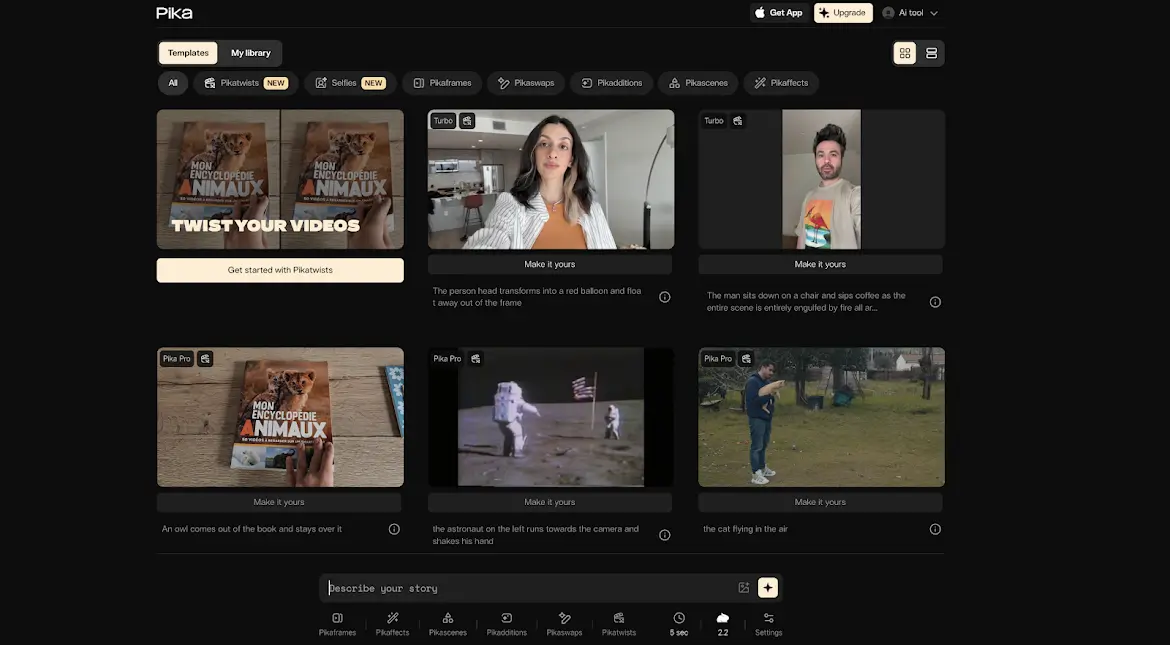
Step 1: Generate the Three Images
You will need three separate images:
- Character
- Object
- Background
Here’s how to prepare them:
- Character image:
- Generate in portrait mode for a full-body shot.
- Use a white background for the best results.
- Object image:
- Create with a square aspect ratio.
- Also use a white background.
- Background image:
- Use a 16:9 aspect ratio for a cinematic look.
Save all three images to your computer.
Step 2: Prepare Action Prompt Using ChatGPT
To make the scene dynamic, you’ll need a clear action prompt.
Example:
"The character picks up the golden chalice from the pedestal."
You can use ChatGPT or write the prompt yourself.
Step 3: Upload Images to Pika
- Open Pika and go to the Ingredients tab.
- Upload all three images:
- Character
- Object
- Background
- Click Open, and the images will appear inside the tool.
Step 4: Enter the Action Prompt
Type your action prompt into Pika.
For example:
"The character slowly reaches out and picks up the golden chalice."
This tells Pika how to animate the three elements together.
Step 5: Generate the Scene
Click Generate, and Pika will combine the three ingredients into a fully animated scene.
Example Walkthrough
Here’s a walkthrough of one of my successful tests:
- Character: A knight
- Object: A golden chalice
- Background: A mystical stone temple
Prompt used:
"The knight reaches out and picks up a golden chalice from a stone pedestal surrounded by a mystical glow."
Result: The knight smoothly reached for the chalice, and the mystical glow made the scene visually impressive.
Tips for Better Results
- Always use white backgrounds for both the character and object images.
- Keep prompts clear and concise.
- If results don’t look right, try regenerating with slightly different wording.
- Start simple before moving to complex actions like fights or multiple characters.
Testing Multiple Characters
I also tested scenes with two or more characters.
- Two characters worked surprisingly well, like a duel scene where swords clashed.
- Four characters were more challenging, and sometimes only three appeared in the output.
- Scenes like two characters sitting inside a car produced impressive results.
Experimenting With Objects and Effects
I explored different concepts like:
- A character summoning a shield.
- A character casting a wave spell.
- A UFO abducting a cow.
Some weren’t perfect, but they clearly showed the potential of combining three different ingredients creatively.
Common Challenges
During my testing, I noticed a few issues:
- Complex prompts sometimes led to inaccurate animations.
- Objects didn’t always interact perfectly with characters.
- Some outputs required multiple regenerations to get right.
FAQs
1. Can I use more than one character in a scene?
Yes, Pika supports multiple characters. For example, two characters can clash swords or interact inside a car. However, results may vary, so testing is recommended.
2. What image formats are supported?
Standard image formats like JPG and PNG are supported.
3. Why is my output not accurate?
This usually happens if:
- The prompt is unclear.
- Character or object images don’t have a plain white background.
- The action described is too complex for the system to interpret.
4. Can I create animated effects like water or explosions?
Yes, you can instruct Pika to create effects like glass breaking or rooms filling with water by describing them clearly in your prompt.
5. Is there a limit to the number of generations?
Yes, the number of generations depends on your Pika plan and available credits.
Final Thoughts
After extensively testing Pika 2.0 Scene Ingredients, I can confidently say this feature is a strong step forward for Pika.
Here’s why:
- It successfully combines characters, objects, and backgrounds into cohesive animated scenes.
- Even though it’s not perfect yet, the results are usable for creative projects like short films or storytelling videos.
- With future updates, it has the potential to become even more powerful.
If you want to create dynamic and unique AI-generated scenes, Scene Ingredients is absolutely worth exploring. It’s fun, flexible, and continues to improve with each update.